flutter image-picker 上传图片
画part页面
 Container(
                alignment:Alignment.center ,
                margin: EdgeInsets.only(top: 10,bottom: 30),
                padding: EdgeInsets.all(10),
                child: Column(
                  children: <Widget>[
                    InkWell(//--水波纹控件/添加点击事件--
                      onTap: (){
                        _showDialog();//--点击触发底部面板--
                      },
                      child: Container(//加号&边框
                        height:80.0,
                        width:80.0,
                        decoration: BoxDecoration(
                            borderRadius: BorderRadius.circular(5),///圆角
                            border: Border.all(color: Colors.black12,width: 1,)///边框颜色、宽
                        ),
                        child: Icon(Icons.add,color:Colors.black12),
                      ),
                    ),
                    Container(//点击后图片的显示与隐藏
                      margin: EdgeInsets.only(top: 10.0),
                      child: _image == null
                          ? Text('',style: (TextStyle(color: Colors.black45,fontSize: 14.0)),)
                          : Image.file(
                        File(_image),
                        width: 300,
                        height: 200,
                      ),
                    ),
                  ],
                ),
              ),
//图片是否上传后对应按钮显示上传即打卡状况
  mark==0?//---标志是否打卡-
             Container(
                // margin: EdgeInsets.only(top:G.screenHeight()>800? 110:90,bottom: G.screenHeight()>800? 30:20,left:20,right: 20 ),
                alignment:Alignment.bottomCenter,
                child:   AButton.normal(
                  width: G.screenWidth()-40,
                  child:Row(children: <Widget>[
//                   user_ico(color:hex('#fff'), size: 20),
                    Text('打卡',style: TextStyle(fontSize: 15),),
                  ],
                      mainAxisAlignment:MainAxisAlignment.center
                  ),
                  color: hex('#fff'),
                  bgColor: Color(0xFF1A4A7A),//rgba(74,159,251, 1),
                  onPressed: () {
                    this.postUploadImg();//点击按钮获取图片上传路径
                  },
                ),
              )
              : Container(
               // margin: EdgeInsets.only(top:G.screenHeight()>800? 110:90,bottom: G.screenHeight()>800? 30:20,left:20,right: 20 ),
               alignment:Alignment.bottomCenter,
               child:   AButton.normal(
                 width: G.screenWidth()-40,
                 child:Row(children: <Widget>[
//                   user_ico(color:hex('#fff'), size: 20),
                   Text('今日已打卡',style: TextStyle(fontSize: 15),),
                 ],
                     mainAxisAlignment:MainAxisAlignment.center
                 ),
                 color: hex('#fff'),
                 bgColor: Color(0xFF1A4A7A),//rgba(74,159,251, 1),
                   onPressed: null
               ),
             )
底部面板里选择上传相册图片or拍照上传:
  _showDialog() async {
    if (await G.requestCameraPermission()) {
      showModalBottomSheet(
          context: context,
          builder: (BuildContext context) {
            return Column(
              mainAxisSize: MainAxisSize.min,
              mainAxisAlignment: MainAxisAlignment.center,
              children: <Widget>[
                ARow(
                  height: (G.screenHeight()/667)*40,
                  onPressed: () {
                    print('从相册选择图片');
                    getGallery();//---相册上传事件----
                    Navigator.pop(context);
                  },
                  centerChild: Text(
                    "从相册选择图片",
                    textAlign: TextAlign.center,
                    style: TextStyle(fontSize:(G.screenWidth()/375)*16),
                  ),
                ),
                ARow(
                  height: (G.screenHeight()/667)*40,
                  onPressed: () {
                    print('拍照');
                    getImage();//---拍照上传事件---
                    Navigator.pop(context);
                  },
                  centerChild: Text(
                    "拍照",
                    textAlign: TextAlign.center,
                    style: TextStyle(fontSize: (G.screenWidth()/375)*16),
                  ),
                ),
                SizedBox(
                  height: 10,
                ),
                ARow(
                  height: (G.screenHeight()/667)*40,
                  onPressed: () {
                    Navigator.pop(context);//---取消事件---
                  },
                  centerChild: Text(
                    "取消",
                    textAlign: TextAlign.center,
                    style: TextStyle(fontSize: (G.screenWidth()/375)*16),
                  ),
                ),
              ],
            );
          });
    }
  }
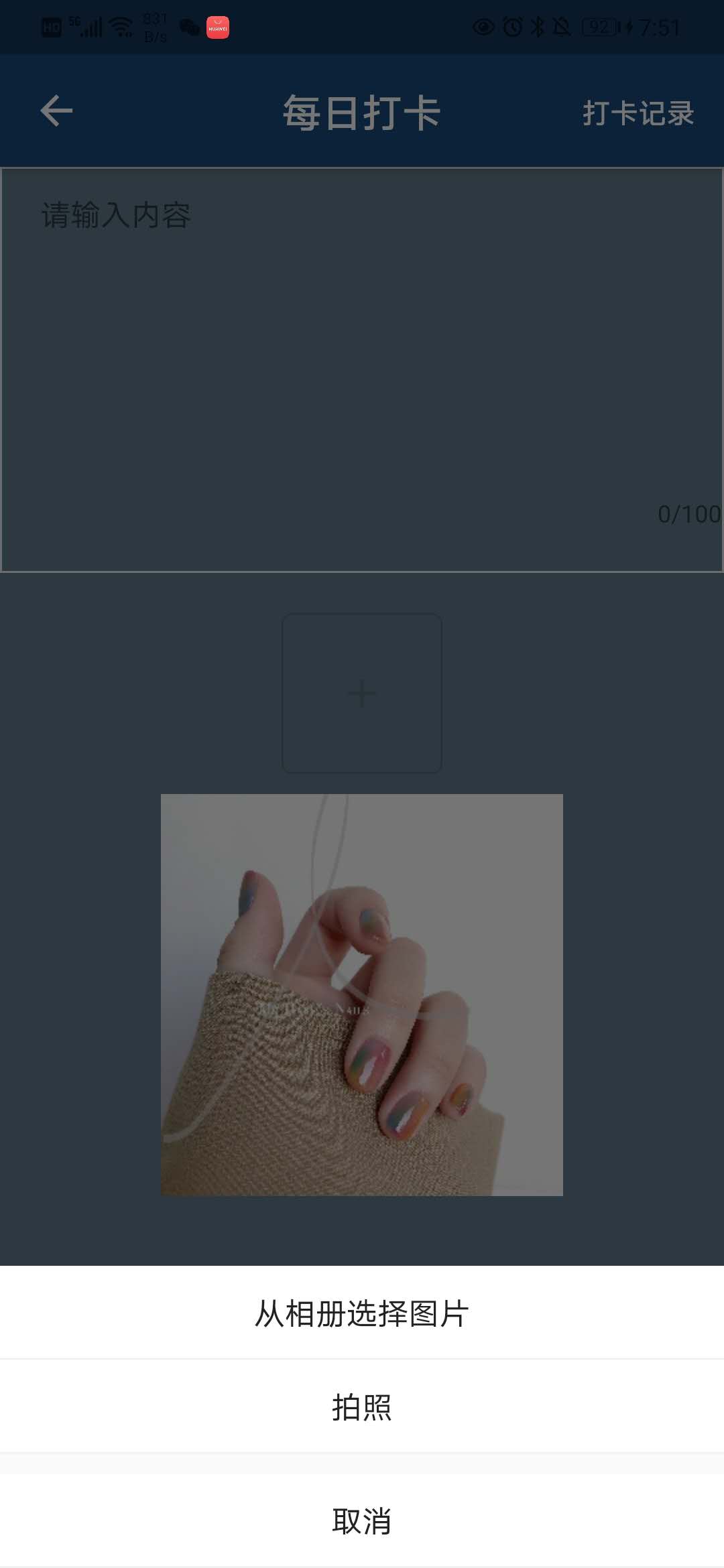
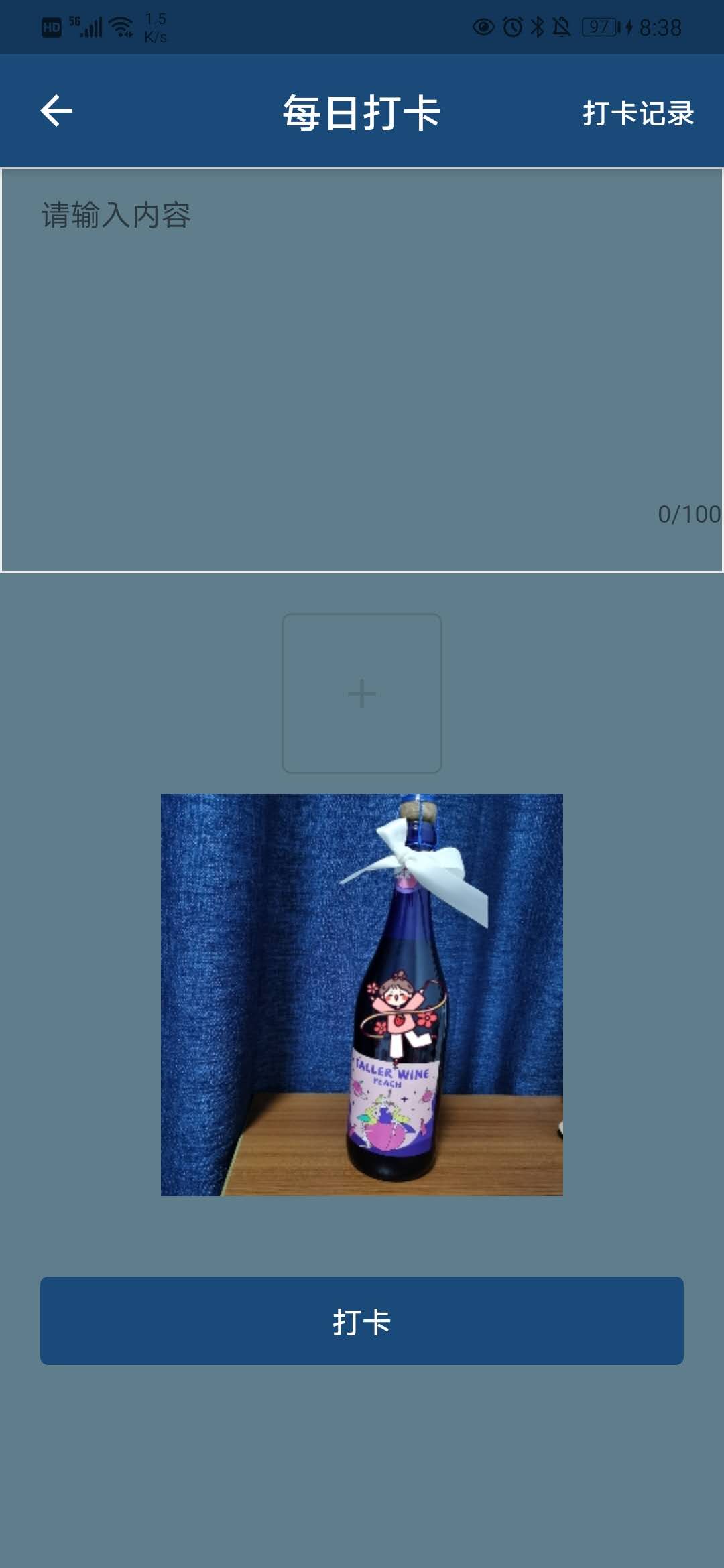
相册上传、拍照上传事件
  Future getImage() async {
    final pickedFile = await picker.getImage(source: ImageSource.camera,maxWidth: 200);
    setState(() {

      _image = pickedFile.path;
    });
  }

  Future getGallery() async {
    final pickedFile = await picker.getImage(source: ImageSource.gallery,maxWidth: 300,maxHeight:400 );
    print(pickedFile.path);
    if (pickedFile.path != null) {

      setState(() {
        _image = pickedFile.path;
      });
    }
  }
查询今日是否打卡
  void  selectToday(){
      HttpRes.singleClockIn({
        "oldGuid":G.user.data.unitGuid,
        "createDate":DateTime.now().toString().substring(0,10),
      }).then((res){
        if (res['code'] == 200) {
          print("查询成功!");
          print(res);
          setState(() {
            if (res['item']!=null){
              mark = 1; //--根据接口查询给mark赋值--
            }else{
              mark = 0;
            }
          });
        }else{
          G.toast(res["msg"]);
        }
      });
  }
调接口获取图片上传路径的方法
  postUploadImg(){
    if(_image==null){
      return G.toast("请先上传图片!");
    }else
 if(textController==null||textController.toString().trim().isEmpty){
      return G.toast("请先输入内容!");
    }else{
      G.loading.show(context);
      HttpRes.postUploadImg(_image).then((res){
        G.loading.hide(context);
        if (res['code'] == 200) {
          picture = res['filePath'];
          this.clockin();//--调用打卡(内容&图片)方法--
        }
      });
    }
  }
传参调接口打卡方法
  void clockin() {
    G.loading.show(context);
    HttpRes.ClockIn({
      //传参数
      //老人ID
      "oldGuid": G.user.data.unitGuid,
      //内容
      "content": textController,
      //图片
      "picture":this.picture ,
      //社区ID
//      "communityGuid": this.arguments['communityGuid'],
    }).then((res){
      G.loading.hide(context);
      // G.loading.hide(context);
      if (res['code'] == 200) {
        G.toalert("打卡成功!");
        G.pushNamed("/clock_history");
        //清空
        setState(() {
          _image=null;
          textController="";
        });
      }else{
        G.toast(res["msg"]);
      }
    });
  }
智能推荐

Flutter加载图片
pubspec.yaml文件中: 注意最后,加入的assets层级要和上面格式一致,且根目录下确实有创建assets文件夹 再来看下根目录: 代码中: 切记不要漏了assts!!...


flutter图片适配
有时Flutter在写图片适配时,会遇到适配问题,比如: 底部区域已经超出,各图片显示的高度也不一致. 解决: 解决办法: 第一种方法: Image中写好宽度和高度即可; 第二种方法: 使用:AspectRatio,设置aspectRatio的比值...
flutter 加载gif图片
flutter 加载gif图片 flutter 显示动态GIF图片: 喜欢可以加群号:913934649 更多详解: 简书: www.jianshu.com/u/88db5f157… csdn:me.csdn.net/beyondforme 掘金:juejin.im/user/5e09a9&...
冒泡排序,及改进方式,性能优化400%>>>附图解加源码
首先源码附上,源码中带有注释,看不懂没关系,源码后面附带图解,最后附上代码效率提升图 源码如下: 方案一:其实实现很简单,两层循环,每次内层迭代出最大的一个值,将其放入数组最后一个位置,外层循环的末端便往前移一位。其原理如下图 方案一代码块: 方案二:优化改进 仔细观察上面的图,我们不难发现当迭代到图下这样的情况时,其实已经全排序好了,但是我们还是需要对它进行1,2,3,4,5,6的迭代,这些情况...
猜你喜欢
css3常用选择器
先介绍一下基本选择器,如下几种 *:通配符。选择页面的所有元素 E:元素选择器。对页面的一些元素进行选择,如p,div,li等 .class:类选择器 #id:id选择器。一个Id在一个页面中只能选择,这是和类选择器的区别 E F:后代选择器。如ul li。选中ul下的li E>F:子元素选择器。如下,可以用 h1 > strong {color:red;}使h1的子元素strong变...
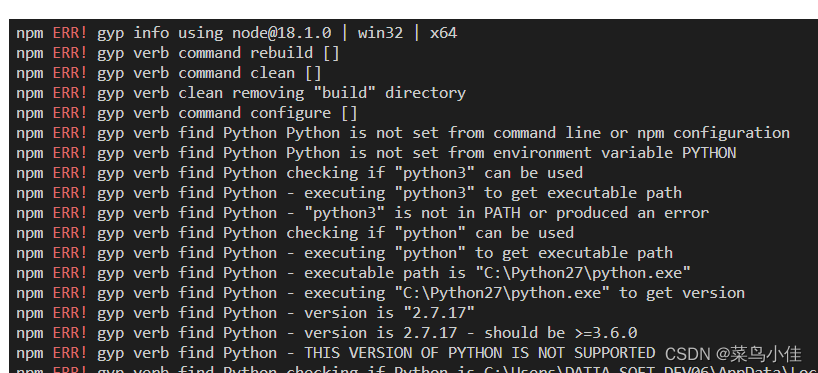
python is not set from command line or npm configuration
问题 猜测原因 python版本冲突 解决方案 去官网找到最新版本python 点击下载,注意记住你下载的目录,下载好以后,打开这个目录下的文件夹,Python310, 整个文件夹复制一下 在项目里运行npm config list --json 找到python的路径 我的是 C:\\Python27\\python.exe 说明项目里用的还是py...
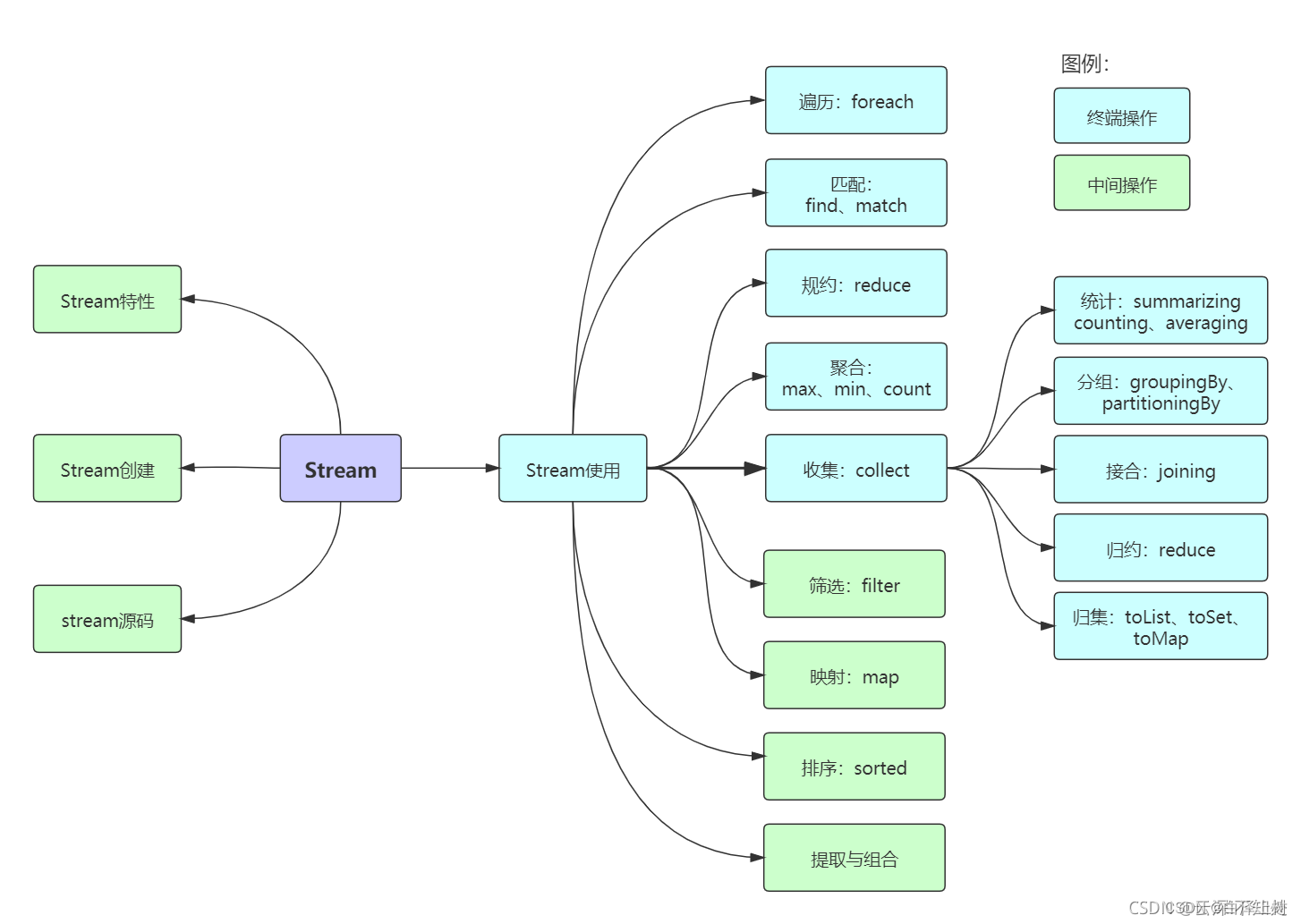
Java8 Stream流操作
前言 我们常常需要将一个容器转化成另一个容器,或是对这个容器中的数据进行批量处理,这时使用Stream流可以大大减少我们的工作量。 1 Stream概述 Java 8 是一个非常成功的版本,这个版本新增的Stream,配合同版本出现的 Lambda ,给我们操作集合(Collection)提供了极大的便利。 那么什么是Stream? Stream将要处理的元素集合看作一种流,在流的过程中,借助St...
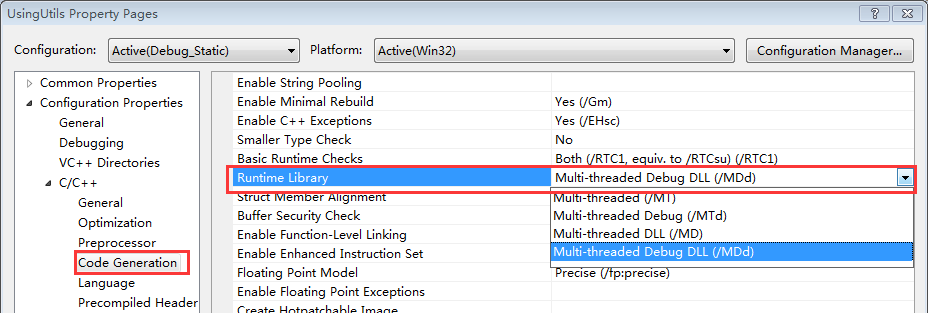
带你玩转Visual Studio——带你跳出坑爹的Runtime Library坑
在Windows下进行C++的开发,不可避免的要与Windows的底层库进行交互,然而VS下的一项设置MT、MTd、MD和MDd却经常让人搞迷糊,相信不少人都被他坑过,特别是你工程使用了很多第三库的时候,及容易出现各种链接问题。看一下下面这个错误提示: LIBCMT.lib(_file.obj) : error LNK2005: ___initstdio already defined...

git 设置 gitignore 忽略 __pycache__
清除git缓存中的pycache 直接删掉硬盘上的文件 如果我想保留硬盘上的这个文件,而只删除版本管理中的文件,就需要加入--cached参数。 切换分支出现问题 尽管我已经删除了__pycache__,硬盘也没有了,但是切换分支的时候依然是会提示本地重写的情况。 提示:需要我在切换分支之前,提交一次更新。 提交了更新之后,再来尝试切换分支,如下: 成功了,说明当做了任何变更之后,切换分支前需要执...
