DevExpress 组合控件系列(2):GridControl WinExplorerView 模仿Windows资源管理器
这个功能其实也就是我之前写的文章listView和imageList结合显示项目图片功能一样的,不过以前写的不好,哈哈哈。这个呢其实是使用dev进行界面优化而已。
(晨曦CZB)
1、在窗体里面拉GridControl控件,选择视图模式,也可以弄视图模式切换呢,还不错,有些类似百度云盘那样的

然后随便定义一个实体类吧,一些基本的字段,在控件列上添加上,基本的一些设置,我就截图了
 class Project
    {
        public string Name { get; set; }
        public string Address { get; set; }
        public string Reamrk { get; set; }

        public Image Images { get; set; }
    }


重要的是上面的控件属性的设置。
2、接着绑定下数据就好了。
public Form1()
{
InitializeComponent();
this.Load += (s, e) => { DataBind(); };
}
private void DataBind()
{
this.gridControl1.BeginUpdate();
this.gridControl1.DataSource = new List<Project> { new Project
{
Name="项目1",
Address="中国福建省福州市",
Reamrk="备注什么好呢",
Images=Properties.Resources._360wallpaper
},
new Project
{
Name="项目2",
Address="中国福建省泉州市",
Reamrk ="那就不备注咯",
Images=Properties.Resources._360wallpaper
}
};
this.gridControl1.EndUpdate();
} 效果出来了,很简单。
3、进行稍微完善下功能吧,拉个控件toolTipController,主要是鼠标移动过去,进行一些提示功能

选择GetActiveObjectInfo事件,进行绑定。代码如下
this.toolTipController1.GetActiveObjectInfo += (s, e) =>
            {
                if (e.SelectedControl != this.gridControl1) return;
                ToolTipControlInfo info = null;
                var view = this.gridControl1.GetViewAt(e.ControlMousePosition) as WinExplorerView;
                if (view == null) return;

                var hi = view.CalcHitInfo(e.ControlMousePosition);
                if (hi.HitTest == DevExpress.XtraGrid.Views.WinExplorer.ViewInfo.WinExplorerViewHitTest.ItemText
                    || hi.HitTest == DevExpress.XtraGrid.Views.WinExplorer.ViewInfo.WinExplorerViewHitTest.ItemImage)
                {
                    var o = hi.HitTest.ToString() + hi.RowHandle.ToString();
                    var name = view.GetRowCellValue(hi.RowHandle, "Name");
                    var projectAddress = view.GetRowCellValue(hi.RowHandle, "Address");
                    var remark = view.GetRowCellValue(hi.RowHandle, "Remark");
                    StringBuilder strBuilder = new StringBuilder();
                    strBuilder.AppendLine($"名称:{name}");
                    strBuilder.AppendLine($"地址:{projectAddress}");
                    strBuilder.AppendLine($"备注:{remark}");

                    info = new ToolTipControlInfo(o, strBuilder.ToString());
                }

                if (info != null)
                    e.Info = info;
            };
功能完成了。看看一些动态的图片效果吧
4、查看方式,多样性
 switch (XX) {
        case "Small":
            winExplorerView1.OptionsView.Style = DevExpress.XtraGrid.Views.WinExplorer.WinExplorerViewStyle.Small;
            break;
        case "Medium":
            winExplorerView1.OptionsView.Style = DevExpress.XtraGrid.Views.WinExplorer.WinExplorerViewStyle.Medium;
            break;
        case "Large":
            winExplorerView1.OptionsView.Style = DevExpress.XtraGrid.Views.WinExplorer.WinExplorerViewStyle.Large;
            break;
        case "Extra Large":
            winExplorerView1.OptionsView.Style = DevExpress.XtraGrid.Views.WinExplorer.WinExplorerViewStyle.ExtraLarge;
            break;
        case "List":
            winExplorerView1.OptionsView.Style = DevExpress.XtraGrid.Views.WinExplorer.WinExplorerViewStyle.List;
            break;
        case "Tiles":
            winExplorerView1.OptionsView.Style = DevExpress.XtraGrid.Views.WinExplorer.WinExplorerViewStyle.Tiles;
            break;
        case "Content":
            winExplorerView1.OptionsView.Style = DevExpress.XtraGrid.Views.WinExplorer.WinExplorerViewStyle.Content;
            break;
        case "Default":
            winExplorerView1.OptionsView.Style = DevExpress.XtraGrid.Views.WinExplorer.WinExplorerViewStyle.Default;
            break;
    }
智能推荐
Windows资源管理器占用CPU过高
问题描述 系统 Win10家庭版 问题 Windows资源管理器占用CPU过高 原因 两天前的操作,可能引发此问题。 安装Viso 2013专业版的**软件,导致电脑病毒; 更新Win10系统。 解决方案 一、杀毒 针对第一个潜在因素,我做了如下措施: 卸载Viso2013,并使用360杀毒软件查杀,结果是没有查到病毒,而且此问题仍旧存在。这时,我意识到可能是更新Win10系统所导致的。因此,我开...
C++模拟windows资源管理器
一、需求分析 1、问题描述 设计一个程序模拟windows资源管理器。 2、功能需求 用户根据提示,选择预期实现的功能,并按要求操作,模拟windows资源管理器中所能实现的基本功能。 程序执行的命令包括: (1)、程序运行,提示用户选择预期实现的功能; (2)、用户按要求操作; (3)、结束。 二、概要设计 1、 问题的抽象数据类型分析 本题要模拟windows资源管理器,需自己构造抽象数据类型...

Windows 10 资源管理器黑色风格
今天来水一篇,说说我前几天某天上午初步实现了我一直想弄的东西:Windows 10 资源管理器黑色风格,用了几天,整体上感觉还不错,当然也有点小瑕疵,我会在后面说。 所有图可右键在新标签页打开查看大图。 更新 这里我会列出对本文的更新。 2017 年 11 月 2 日:增加问题 #5。 先睹为快 实现后的界面是这样的: 主界面 文件列表 选中状态 任务管理器 复制 记事本 Word WARNING...

Devexpress - GridControl 动态禁用按钮
原文:https://www.devexpress.com/Support/Center/Question/Details/A2815/how-to-display-disabled-buttons-for-particular-cells-within-a-buttonedit-column 能打开的,就打开看吧,不然再往看!这里我只用其中的一个方法. 重写方法 效果图 附件: https://...

猜你喜欢
DevExpress GridControl内容居中显示
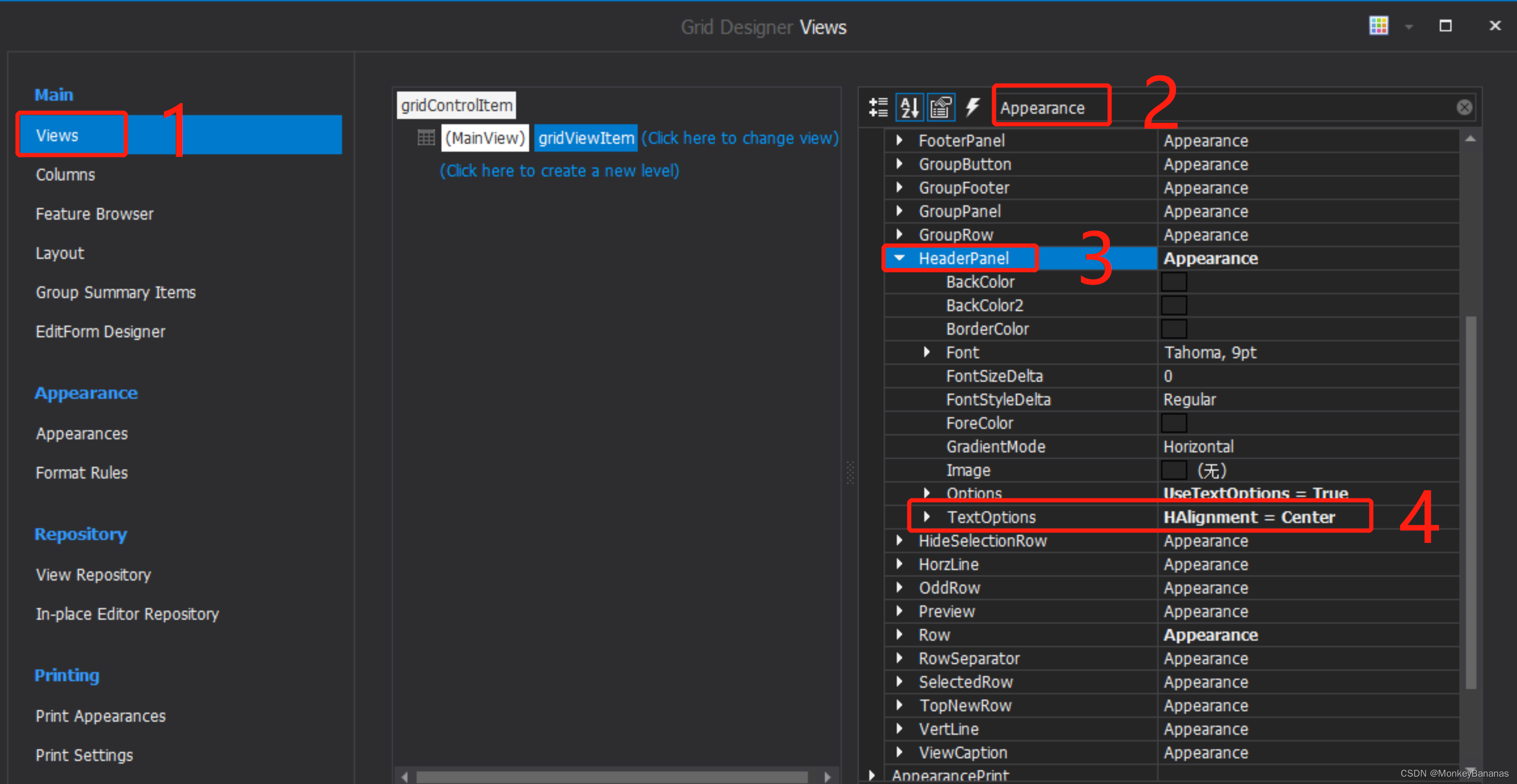
设置标题文字居中,设置步骤Views->Appearance->HeaderPanel->TextOptions->HAlignment 代码设置如下: 设置某一列内容居中,设置步骤Columns->AppearanceCell->TextOptions->HAlignment 代码设置如下: 设置所有列内容居中,设置步骤Views->Appeara...


Android 炫酷的横向和环形进度条的实例
一、概述 最近需要用进度条,秉着不重复造轮子的原则,上github上搜索了一番,看了几个觉得比较好看的ProgressBar,比如:daimajia的等。简单看了下代码,基本都是继承自View,彻彻底底的自定义了一个进度条。盯着那绚丽滚动条,忽然觉得,为什么要通过View去写一个滚动条,系统已经提供了ProgressBar以及属于它的特性,我们没必要重新去构建一个,但是系统的又比较丑,不同版本变现...
pcap包结构&SNI字段的解析
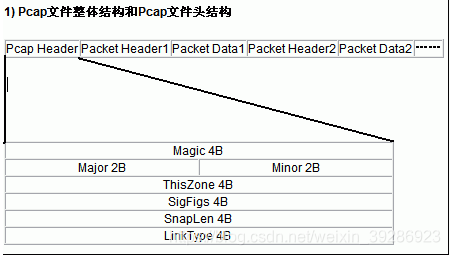
pcap文件格式是常用的数据报存储格式,包括wireshark在内的主流抓包软件都可以生成这种格式的数据包。 文件格式: Pcap文件头(24字节)+数据包头(wireshark增加的)+数据包(网络中抓取的)+…… 1.pcap文件头结构 各字段说明: Magic:4B:0×...

MC9S12XEP100的IIC模块(IICV3)
最近在写DS3231时钟芯片的驱动,这个芯片使用IIC进行通讯,以前没有用过IIC模块,照着教材和示例程序写程序后发现各种问题。没办法,还是官方数据手册靠谱,遂把相应部分又翻译了一遍。果然发现示例程序纯粹就是个玩具,一点用都没有。。。 第15章 集成电路总线(IICV3) 译者注:译者博客(http://blog.csdn.net/lin_strong),转载请保留这条。此为 MC9S12XEP1...
