ASP.net本质论之用控制台应用程序创建Asp.net服务器
| 主题 | 概要 |
|---|---|
| Asp.net | 应用程序域、HttpRunTime |
| 编辑 | 时间 |
| 新建 | 20170925 |
| 序号 | 参考资料 |
| 1 | Asp.net本质论 |
| 2 | C#高级编程(第七版) |
| 3 | http://blog.csdn.net/sh524555685/article/details/7454244(应用程序域解释) |
| 4 | http://blog.csdn.net/lhc1105/article/details/47815971(程序集加到GAC方法) |
Web应用程序,归根结底是一种网络处理程序,网络处理程序主要的关键就是监听与处理。
监听程序
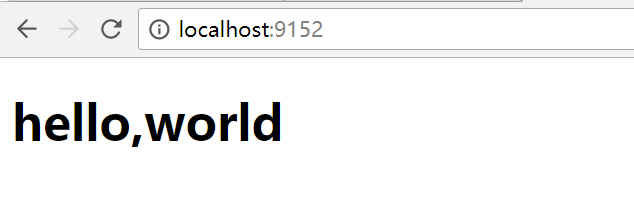
Socket是最原始的网络监听程序,下面的示例显示了监听本机9152端口并返回hello,world的html页面。
Socket监听程序
namespace SocketWeb
{
    public class Socket
    {
        public void run()
        {
            IPAddress address = IPAddress.Loopback;

            IPEndPoint endPoint = new IPEndPoint(address, 9152);

            System.Net.Sockets.Socket socket = new System.Net.Sockets.Socket(AddressFamily.InterNetwork, SocketType.Stream, ProtocolType.Tcp);

            socket.Bind(endPoint);

            socket.Listen(10);

            Console.WriteLine("开始监听,端口号为{0}", endPoint.Port);

            while (true)
            {
                System.Net.Sockets.Socket client = socket.Accept();
                try
                {

                    Console.WriteLine(client.RemoteEndPoint);

                    byte[] buffer = new byte[4096];

                    int length = client.Receive(buffer, 4096, SocketFlags.None);

                    System.Text.Encoding utf8 = System.Text.Encoding.UTF8;

                    string requestString = utf8.GetString(buffer, 0, length);

                    Console.WriteLine(requestString);

                    string statusLine = "HTTP/1.1 200 OK\r\n";
                    //string statusLine = "200 OK\r\n";

                    byte[] statusLineByte = utf8.GetBytes(statusLine);

                    string responseBody = @"<!DOCTYPE html><html lang = 'en'><head><meta charset = 'UTF-8'>" +
                        "<title> From Socket Server</title></head><body><h1>hello,world </h1></body></html> ";

                    //string responseBody = @"123456";

                    byte[] responseBodyByte = utf8.GetBytes(responseBody);

                    string responseHead = string.Format("Content-Type:text/html; charset=utf-8\r\nContent-Length:{0}\r\n",responseBodyByte.Length);

                    byte[] responseHeadByte = utf8.GetBytes(responseHead);

                    client.Send(statusLineByte);

                    client.Send(responseHeadByte);

                    //--头部与内容的分隔行
                    client.Send(new byte[] { 13,10});

                    client.Send(responseBodyByte);

                    client.Close();

                    if (Console.KeyAvailable)
                    {
                        break;
                    }
                }
                catch (Exception ex)
                {
                    var msg = ex.Message;
                    client.Close();
                }

            }

            socket.Close();
        }
    }
}
在main函数中运行这个run方法进行监听,在浏览器中输入localhost:9152,能返回响应:
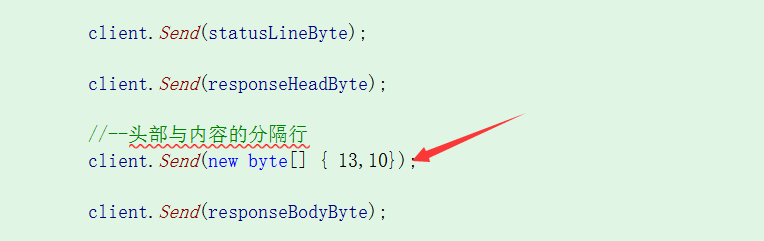
需要注意的是发送响应内容时一定要把头部和内容分隔开:
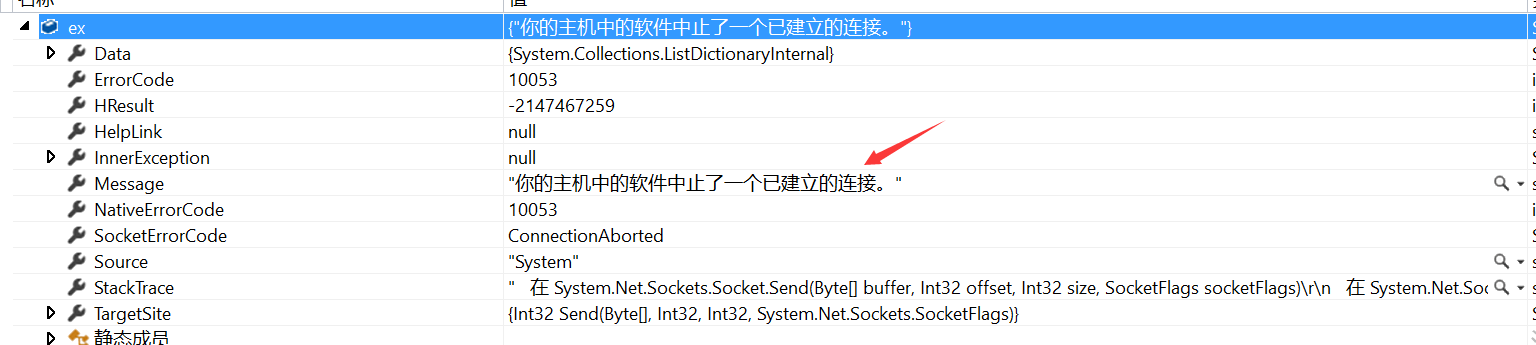
不然会被中止连接:
TCP监听程序
.net为了简化TCP协议的监听程序,提供了一个TcpListener类,下面的代码与socket程序的效果相同:
namespace Aspnet.TcpListener
{
    public class WebTcp
    {
        public void run()
        {
            IPAddress address = IPAddress.Loopback;

            IPEndPoint endPoint = new IPEndPoint(address, 9152);

            System.Net.Sockets.TcpListener tcpListener = new System.Net.Sockets.TcpListener(endPoint);

            tcpListener.Start();

            Console.WriteLine("开始监听,端口号为{0}", endPoint.Port);

            while (true)
            {
                TcpClient tcpClient = tcpListener.AcceptTcpClient();
                Console.WriteLine("已经建立联接");

                //--得到一个网络流
                NetworkStream ns = tcpClient.GetStream();

                try
                {

                    byte[] buffer = new byte[4096];

                    int length = ns.Read(buffer,0,4096);

                    System.Text.Encoding utf8 = System.Text.Encoding.UTF8;

                    string requestString = utf8.GetString(buffer, 0, length);

                    Console.WriteLine(requestString);

                    string statusLine = "HTTP/1.1 200 OK\r\n";
                    //string statusLine = "200 OK\r\n";

                    byte[] statusLineByte = utf8.GetBytes(statusLine);

                    string responseBody = @"<!DOCTYPE html><html lang = 'en'><head><meta charset = 'UTF-8'>" +
                        "<title> From Socket Server</title></head><body><h1>hello,world </h1></body></html> ";


                    byte[] responseBodyByte = utf8.GetBytes(responseBody);

                    string responseHead = string.Format("Content-Type:text/html; charset=utf-8\r\nContent-Length:{0}\r\n", responseBodyByte.Length);

                    byte[] responseHeadByte = utf8.GetBytes(responseHead);


                    ns.Write(statusLineByte,0,statusLineByte.Length);
                    ns.Write(responseHeadByte, 0, responseHeadByte.Length);
                    ns.Write(new byte[] { 13, 10 }, 0, 2);
                    ns.Write(responseBodyByte, 0, responseBodyByte.Length);

                    ns.Close();

                    if (Console.KeyAvailable)
                    {
                        break;
                    }
                }
                catch (Exception ex)
                {
                    var msg = ex.Message;
                    ns.Close();
                }
            }

            tcpListener.Stop();
        }

    }
}
HTTP监听程序
为了进一步简化HTTP协议的监听程序,.net提供了一个HttpListener类,通过字符串的形式提供地址和监听端口号。
  public void run()
        {
            string prex = "http://localhost:9152/";
            System.Net.HttpListener httpListener = new System.Net.HttpListener();

            httpListener.Prefixes.Add(prex);
            httpListener.Start();

            Console.WriteLine("开始监听.....");

            while (true)
            {
                HttpListenerContext context = httpListener.GetContext();
                Console.WriteLine("已经建立联接");

                try
                {
                    HttpListenerRequest request = context.Request;
                    Console.WriteLine(request.ToString());

                    HttpListenerResponse response = context.Response;
                    string responseBody = @"<!DOCTYPE html><html lang = 'en'><head><meta charset = 'UTF-8'>" +
                        "<title> From Socket Server</title></head><body><h1>hello,world </h1></body></html> ";

                    response.ContentLength64 = System.Text.Encoding.UTF8.GetByteCount(responseBody);
                    response.ContentType = "text/html; charset=utf-8";

                    Stream output = response.OutputStream;
                    StreamWriter streamWriter = new StreamWriter(output);
                    streamWriter.Write(responseBody);

                    streamWriter.Close();
                    if (Console.KeyAvailable)
                    {
                        break;
                    }
                }
                catch (Exception ex)
                {
                    Console.WriteLine(ex.Message);
                }
            }

            httpListener.Stop();
        }
可以看到,上面的监听和处理程序实际上是在一起的,只是通过监听程序回发一些固定的内容。下面通过创建自定义的应用程序域,自定义请求处理函数来创建自己的Web服务器。
自定义Web服务器
所谓自定义Web服务器,就是复用前面的http监听程序,并调用自己的请求处理程序,完全抛弃IIS服务器。
在创建之前,首先需要了解一个概念。
Web应用程序域
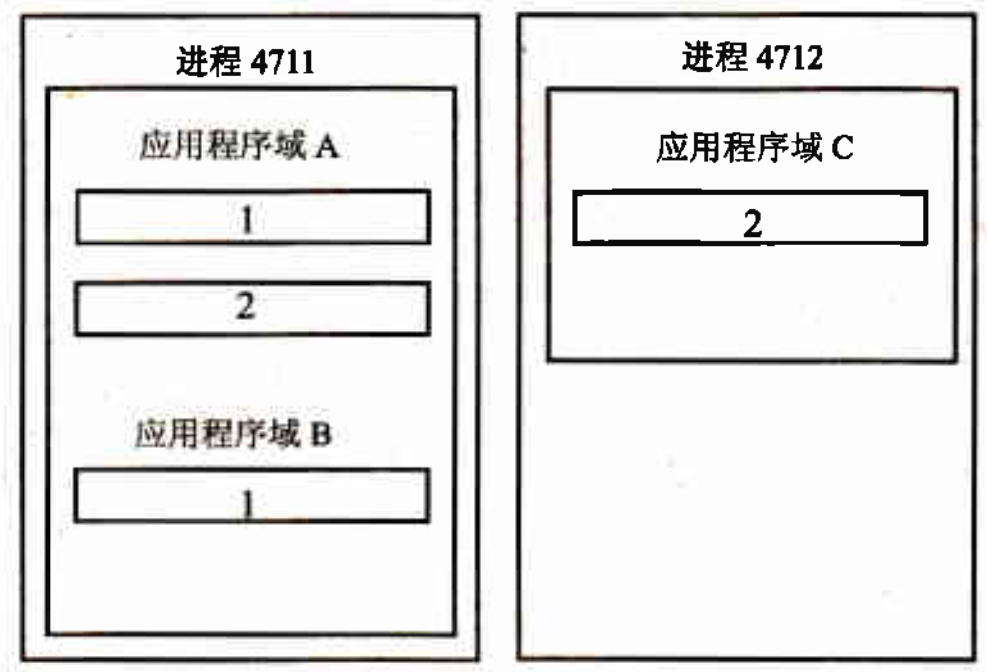
在.net之前的技术中,进程作为独立的边界来使用,每个进程都有其私有的虚拟内存。在.net体系结构中,应用程序有一个新的边界:应用程序域。多个应用程序可以运行在一个进程的多个应用程序域中。
那为什么要引入应用程序域?
我们知道所有.net应用程序都运行在托管环境中,但操作系统只提供进程供程序运行,而进程只是提供了基本的内存管理,它不了解什么是托管代码。所以托管代码,也可以说是我们创建的.Net程序,是无法直接运行在操作系统进程中的。为了使托管代码能够运行在非托管的进程之上,就需要有一个中介者,这个中介者可以运行于非托管的进程之上,同时向托管代码提供运行的环境。这个中介者就是应用程序域(Application Domain,简写为App Domain)。所以我们的.Net程序,不管是Windows窗体、Web窗体、控制台应用程序,又或者是一个程序集,总是运行在一个App Domain中
如果只有一个类库程序集(.dll文件),是无法启动一个进程的(它并非可执行文件)。所以,创建进程需要加载一个可执行程序集(Windows 窗体、控制台应用程序等.exe文件)。当可执行程序集加载完毕,.Net会在当前进程中创建一个新的应用程序域,称为默认应用程序域。一个进程中只会创建一个默认应用程序域,这个应用程序域的名称与程序集名称相同。默认应用程序域不能被卸载,并且与其所在的进程同生共灭。
那为什么引入了应用程序域,就能运行托管代码呢?也就是,应用程序域是如何提供托管环境的?
简单来说,是因为应用程序域允许它所加载的程序集访问由.net Runtime所提供的服务。这些服务包括托管堆(Managed Heap),垃圾回收器(Garbage collector),JIT 编译器等.Net底层机制,这些服务本身(它们构成了.Net Runtime)是由非托管C++实现的。
可以看到,一个进程可以包含多个应用程序域,每个应用程序域都有自己的运行时环境。
创建自定义Web服务器的应用程序域
一个进程可以包含多个应用程序域,我们创建一个控制台exe程序来启动进程,我们称启动进程创建的默认应用程序域叫控制台应用程序域,把监听以及数据回发的功能放在这个应用程序域中。另外创建一个应用程序域来进行请求的处理,假设叫作Web服务器应用程序域。两个应用程序域之间的通信涉及到一个跨域访问的问题,跨域访问的类必须派生自System.MarshalByRefObject。
请求处理类
添加一个程序集Aspnet.WebServer,并定义一个WebServer类:
namespace Aspnet.WebServer
{
    public class WebServer:System.MarshalByRefObject
    {
        public void ProcessRequest(string page,string query,System.IO.TextWriter writer)
        {

            Console.WriteLine("Web服务器应用程序域ID={0}",AppDomain.CurrentDomain.Id);
            System.Web.Hosting.SimpleWorkerRequest simpleRequest = new System.Web.Hosting.SimpleWorkerRequest(page,query,writer);
            System.Web.HttpRuntime.ProcessRequest(simpleRequest);
        }

    }
}
这个类封装了一个SimpleWorkerRequest对象,并调用该应运行时ProcessRequest方法。这就是我们自定义的Web处理程序,打印出当前应用程序域ID,并转给运行时处理。
重写HttpLinstener监听程序
监听程序,就使用上面的HttpLinstener,为它加上处理程序的委托,并把请求处理转给此委托。
  public delegate void ProcessRequestHandler(string page, string query, System.IO.TextWriter writer);

        public ProcessRequestHandler processRequestHandler;

        public void setProcessRequestHandler(ProcessRequestHandler processRequestHandler)
        {
            this.processRequestHandler = processRequestHandler;
        }
新的监听程序:
public void run()
        {
            string prex = "http://localhost:9152/";
            System.Net.HttpListener httpListener = new System.Net.HttpListener();

            httpListener.Prefixes.Add(prex);
            httpListener.Start();

            Console.WriteLine("控制台应用程序域ID={0}",AppDomain.CurrentDomain.Id);
            Console.WriteLine("开始监听.....");

            while (true)
            {
                HttpListenerContext context = httpListener.GetContext();
                Console.WriteLine("已经建立联接");

                try
                {
                    HttpListenerRequest request = context.Request;
                    Console.WriteLine(request.ToString());

                    HttpListenerResponse response = context.Response;


                    using (TextWriter streamWriter = new StreamWriter(response.OutputStream))
                    {
                        string path = Path.GetFileName(request.Url.AbsolutePath);

                        StringWriter sw = new StringWriter();

                        this.processRequestHandler(path, request.Url.Query, sw);

                        var code = sw.Encoding;

                        //--获取处理结果
                        string content = sw.ToString();
                        sw.Close();

                        Console.WriteLine(content);

                        response.ContentLength64 = System.Text.Encoding.UTF8.GetByteCount(content);
                        response.ContentType = "text/html; charset=utf-8";
                        streamWriter.Write(content);

                        Console.WriteLine("Process OK");

                    }

                    if (Console.KeyAvailable)
                    {
                        break;
                    }
                }
                catch (Exception ex)
                {
                    Console.WriteLine(ex.Message);
                }
            }
            httpListener.Stop();
        }
自定义应用程序域
现在监听程序和处理程序都准备完毕,需要自定义我们的Web应用程序域。使用CreateApplicationHost方法创建:
namespace Aspnet.SelfAppDomain
{
    public class SelfAppDomain
    {
        public void build()
        {

            System.Type hostType = typeof(WebServer.WebServer);
            WebServer.WebServer sefWebServer = System.Web.Hosting.ApplicationHost.CreateApplicationHost(hostType, "/",
                System.Environment.CurrentDirectory) as WebServer.WebServer;

            Console.WriteLine("CurrentDomain ID:{0}", AppDomain.CurrentDomain.Id);

            WebHttp httpListener = new WebHttp();
            httpListener.setProcessRequestHandler(sefWebServer.ProcessRequest);

            httpListener.run();
        }
    }
}
要特别注意的是,使用CreateApplicationHost创建新的应用程序域,这个应用程序将重新加载hostType,按照:
1) GAC
2) 网站物理文件目录下的bin文件夹。
的顺序寻找,不然会报未找到文件错误。
但比较奇诡的是,我把程序集拷到bin目录下,总是不成功。因此,为了顺利运行,只好把它加载到GAC中。加载方法:
运行VS2015命令提示符
1) 通过sn –k 命令生成公钥

2) 程序集属性中使用此公钥签名
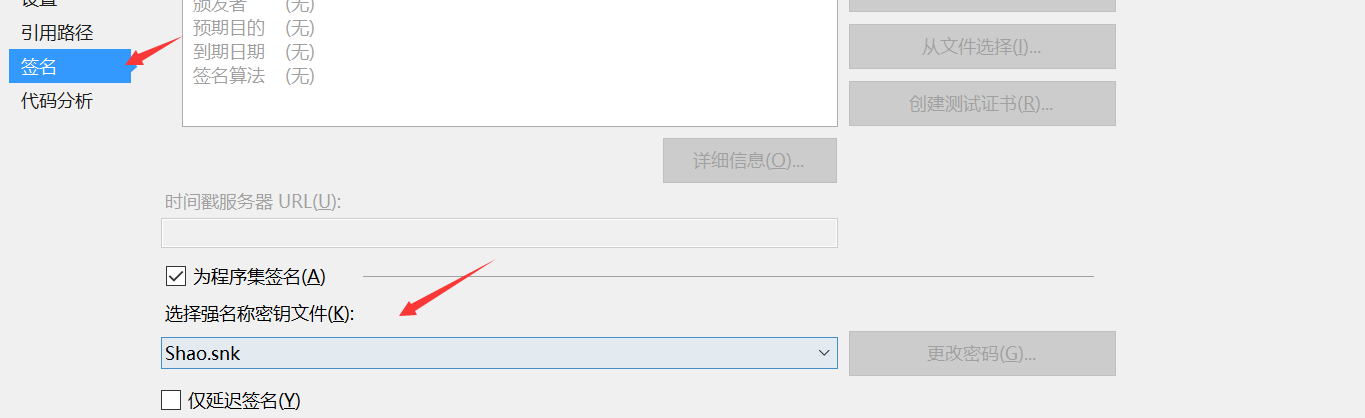
3)使用gacutil.exe –i 命令添加到GAC

如果一切顺利完毕,运行此控制台应用程序,就完成了我们自定义的Web服务器:
在浏览器中输入http://localhost:9152,控制台上显示确实有了两个应用程序域:

智能推荐
.netcore入门29:使用nssm.exe将asp.net core控制台程序安装为window服务
环境: window10 x64企业版 vs2019 asp.net core 3.1 nssm2.24-101 nssm官网:http://nssm.cc/ 网盘下载地址: 链接:https://pan.baidu.com/s/1eaIVQABoV_0S4Ru0gi0aig 提取码:lctv 我们知道,使用asp.net core开发好的程序可以直接双击运行,因为它自带kestrel,是一个标准...

ASP.Net Core Web 应用程序 与 MySQL
本文简单介绍如何建立ASP.Net Core Web 应用,数据库使用MySQL的方法流程。 1、建立项目,以Student为例 2、选择MVC 3、NuGet包添加Microsoft.EntityFrameworkCore.Tools和Pomelo.EntityFrameworkCore.MySql 4、在Models文件夹下创建Student类 5、在Controller文件夹下右键添加使用E...
ASP.NET Core 应用程序Startup类介绍
Startup 类 ASP.NET Core应用程序需要一个启动类,按照惯例命名为Startup。在主程序的Web Host生成器(WebHostBuilderExtensions)的 UseStartup <TStartup> 扩展方法中指定启动类名称。 您可以为不同的环境定义不同的Startup类,并在运行时选择适当的Startup类。如果在Web Host配置...

ASP.NET Core 应用程序状态
在ASP.NET Core中,由多种途径可以对应用程序状态进行管理,使用哪种途径,由检索状态的时机和方式决定。 应用程序状态指的是用于描述当前状况的任意数据。包括全局和用户特有的数据。 开发人员可以根据不同的因素来选择不同的方式存储状态数据: 数据需要存储多久 数据有多大 数据的格式是什么 数据是否可以序列化 数据有多敏感 数据能否保存在...

ASP.NET Web应用程序的登录
1.新建项目ASP.NET Web应用程序(.NET Framework) C# 注意:2019版的VS ASP.NET Web应用程序(.NET Framework)有两种 C# 的创建好后图标是绿色的 Visual Basic 创建好后图标是蓝色的 2.搭建三层 相互引用 3 创建数据库 ...
猜你喜欢
【ASP.NET】ASP.NET 4.0 尚未在Web 服务器上注册。
一、问题描述 二、aspnet_regiis.exe 说明 %windir%\Microsoft.NET\Framework\v4.0.30319\aspnet_regiis.exe Microsoft (R) ASP.NET RegIIS 版本 4.0.30319.0 用于在本地计算机上安装和卸载 ASP.NET 的管理实用工具。 版权所有(C) Microsoft C...
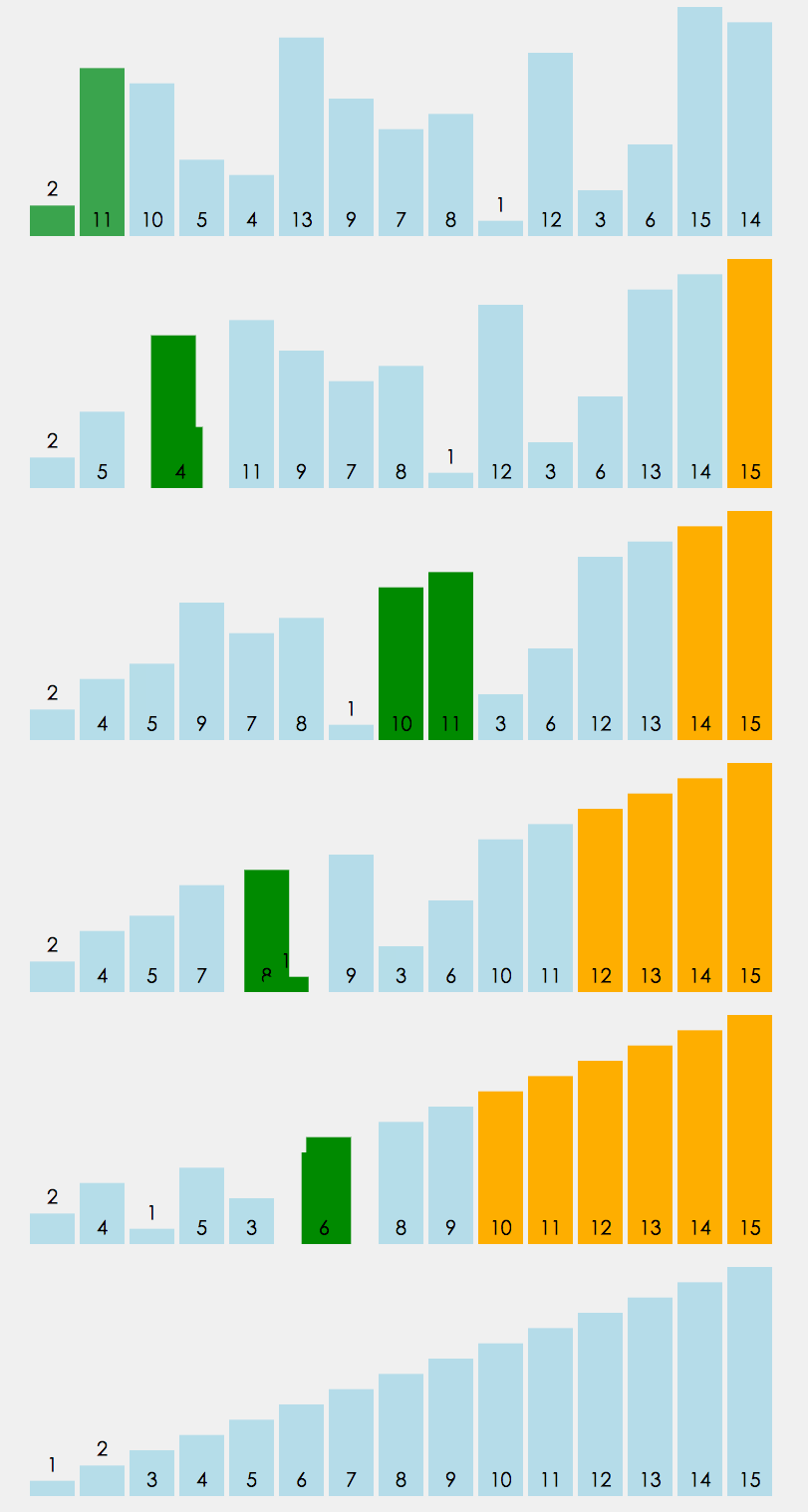
冒泡排序,及改进方式,性能优化400%>>>附图解加源码
首先源码附上,源码中带有注释,看不懂没关系,源码后面附带图解,最后附上代码效率提升图 源码如下: 方案一:其实实现很简单,两层循环,每次内层迭代出最大的一个值,将其放入数组最后一个位置,外层循环的末端便往前移一位。其原理如下图 方案一代码块: 方案二:优化改进 仔细观察上面的图,我们不难发现当迭代到图下这样的情况时,其实已经全排序好了,但是我们还是需要对它进行1,2,3,4,5,6的迭代,这些情况...
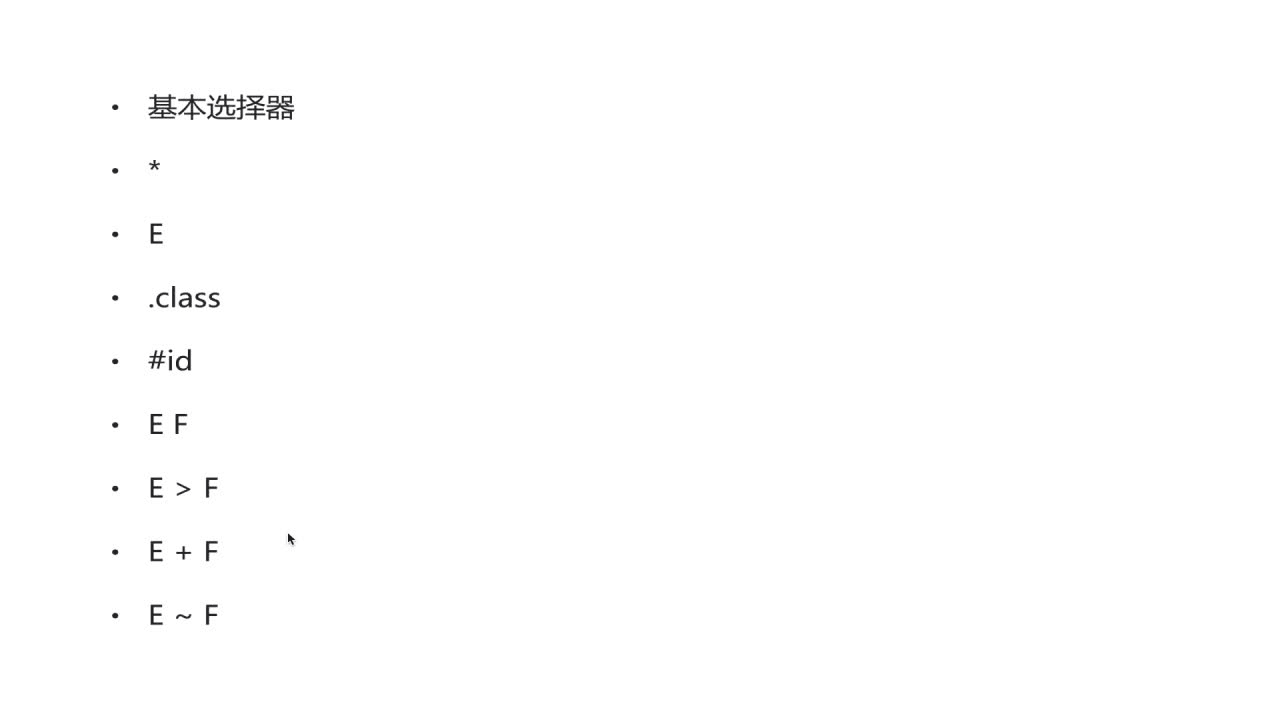
css3常用选择器
先介绍一下基本选择器,如下几种 *:通配符。选择页面的所有元素 E:元素选择器。对页面的一些元素进行选择,如p,div,li等 .class:类选择器 #id:id选择器。一个Id在一个页面中只能选择,这是和类选择器的区别 E F:后代选择器。如ul li。选中ul下的li E>F:子元素选择器。如下,可以用 h1 > strong {color:red;}使h1的子元素strong变...
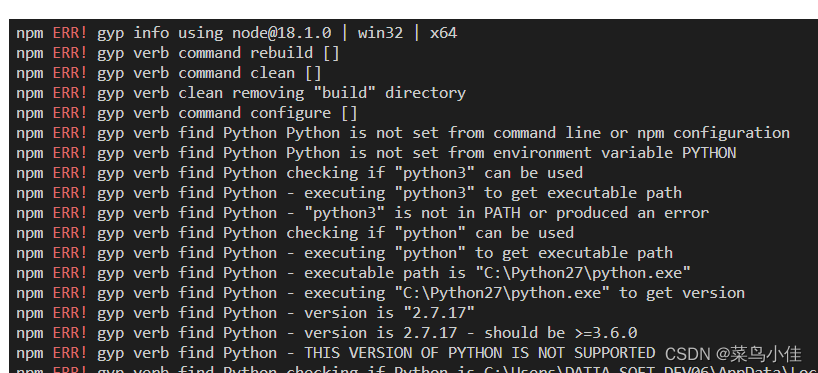
python is not set from command line or npm configuration
问题 猜测原因 python版本冲突 解决方案 去官网找到最新版本python 点击下载,注意记住你下载的目录,下载好以后,打开这个目录下的文件夹,Python310, 整个文件夹复制一下 在项目里运行npm config list --json 找到python的路径 我的是 C:\\Python27\\python.exe 说明项目里用的还是py...
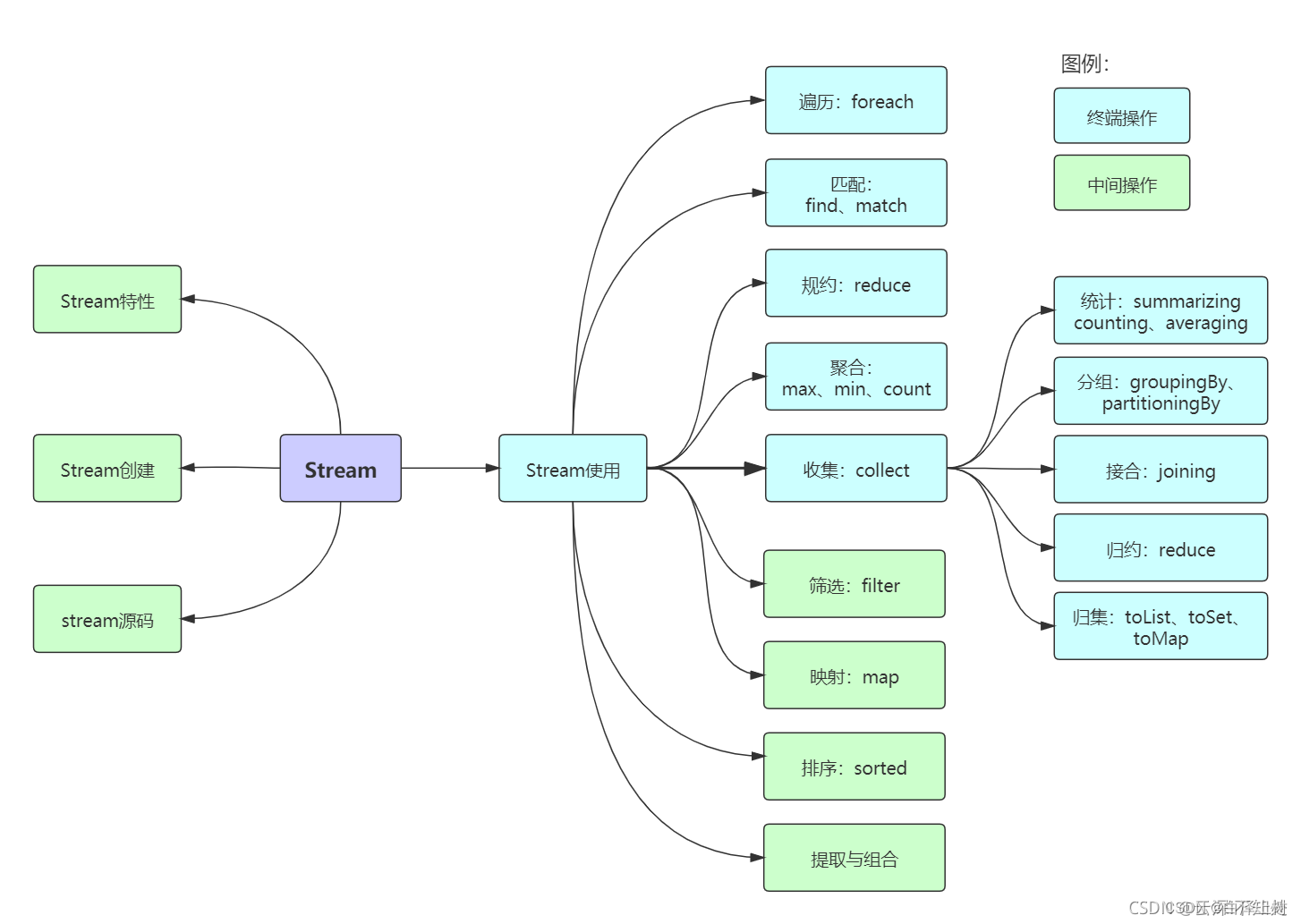
Java8 Stream流操作
前言 我们常常需要将一个容器转化成另一个容器,或是对这个容器中的数据进行批量处理,这时使用Stream流可以大大减少我们的工作量。 1 Stream概述 Java 8 是一个非常成功的版本,这个版本新增的Stream,配合同版本出现的 Lambda ,给我们操作集合(Collection)提供了极大的便利。 那么什么是Stream? Stream将要处理的元素集合看作一种流,在流的过程中,借助St...
